Claude for Equity Research
Claude Projects, Claude for Microsoft Office, Cowork and Dispatch


Hi! I'm Michael Fritzell. Welcome to another free-to-read edition of Asian Century Stocks – a newsletter about Asian value stocks. First time reading? Sign up here. For a complete list of all previous posts, check out the Table of Contents.
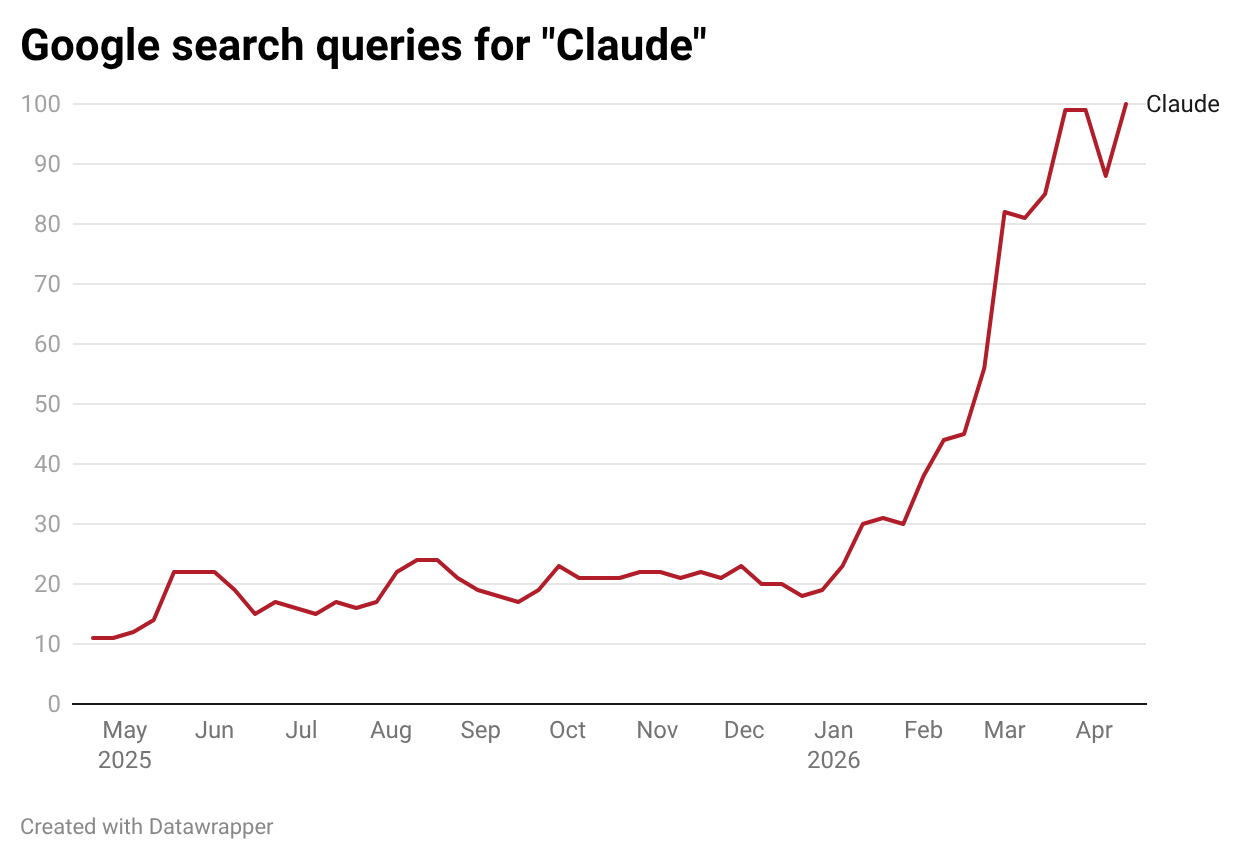
2026 has been the year of Anthropic.
They are the creator of the large language model Claude, which has taken the world by storm:
The company was founded by a group of ex-OpenAI executives, who purportedly set out to create a more ethical generative AI tool. The result was Claude.ai – a chatbot that functions much the same way as ChatGPT and Google Gemini.
However, the popularity of Claude did not take off until late January 2026. At the time, Anthropic released Claude Cowork — an AI colleague that can work with files on your computer using natural language prompts.
And since then, Anthropic has been on an epic run of product releases, including Claude Design, Claude Marketplace, Claude for Excel, Claude for PowerPoint, Claude for Word, Claude for Chrome, and Claude Mythos.
In this post, I'll explain exactly how I use Claude to analyze stocks. And hopefully, you'll learn something in the process.
Personalized instructions
First, go to claude.ai and create an account.
There's a free plan that gives you access to the basic model (Claude Sonnet) with up to 100 messages per day.
There's also a Pro plan for US$20/month that gives you access to the reasoning model Opus 4.7, with 5x more usage than the free tier, access to Claude for Microsoft Office, and Claude Cowork. I suggest buying the Pro plan.
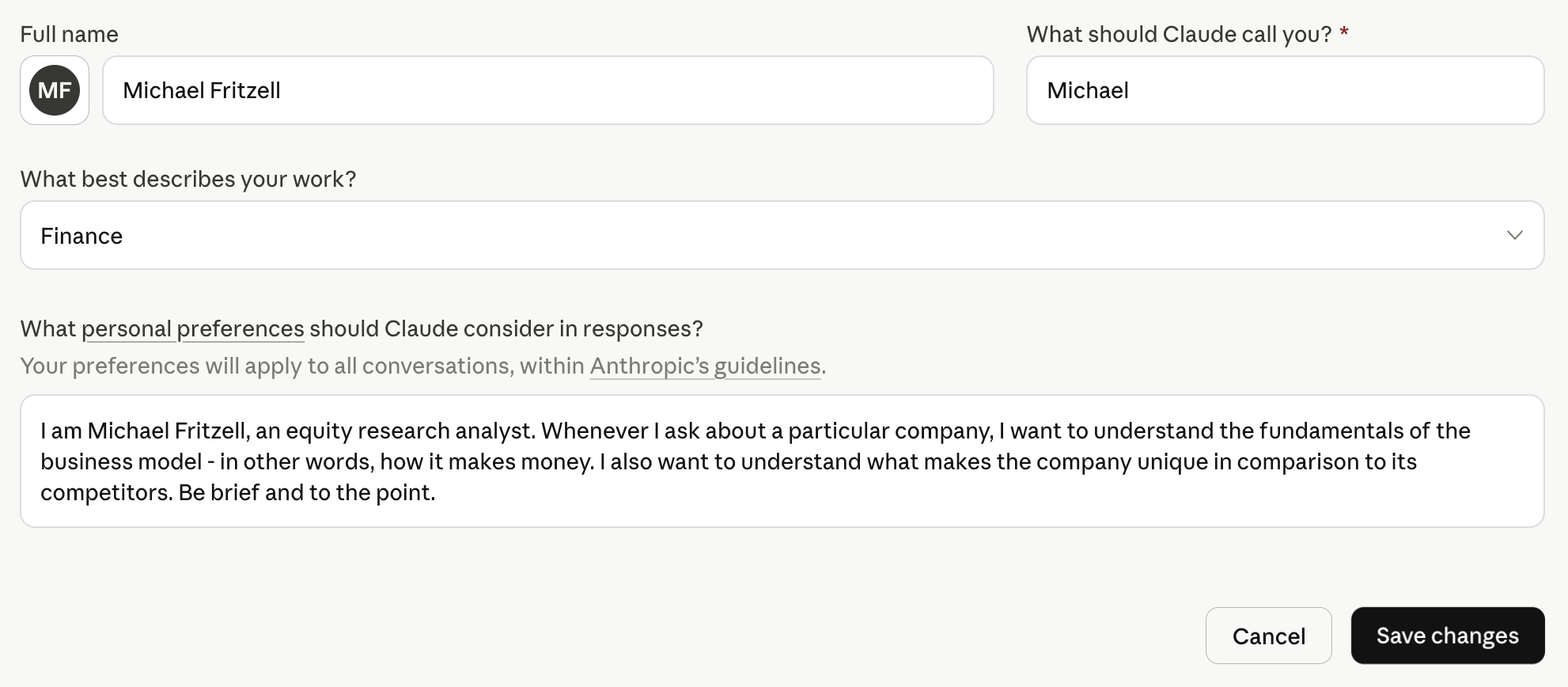
When you first go to the website, Claude won't know much about you. So I suggest going to your profile (in my case, "MF") and then "Settings". You'll now be able to provide context on what you're looking for from Claude.
In my case, I tell Claude that:
"I am Michael Fritzell, an equity research analyst. Whenever I ask about a particular company, I want to understand the fundamentals of the business model – in other words, how it makes money. I also want to understand what makes the company unique in comparison to its competitors. Be brief and to the point."
If you've used Claude for a while, it will have saved a memory of past discussions. You can access that memory by clicking "Memory from your chats":
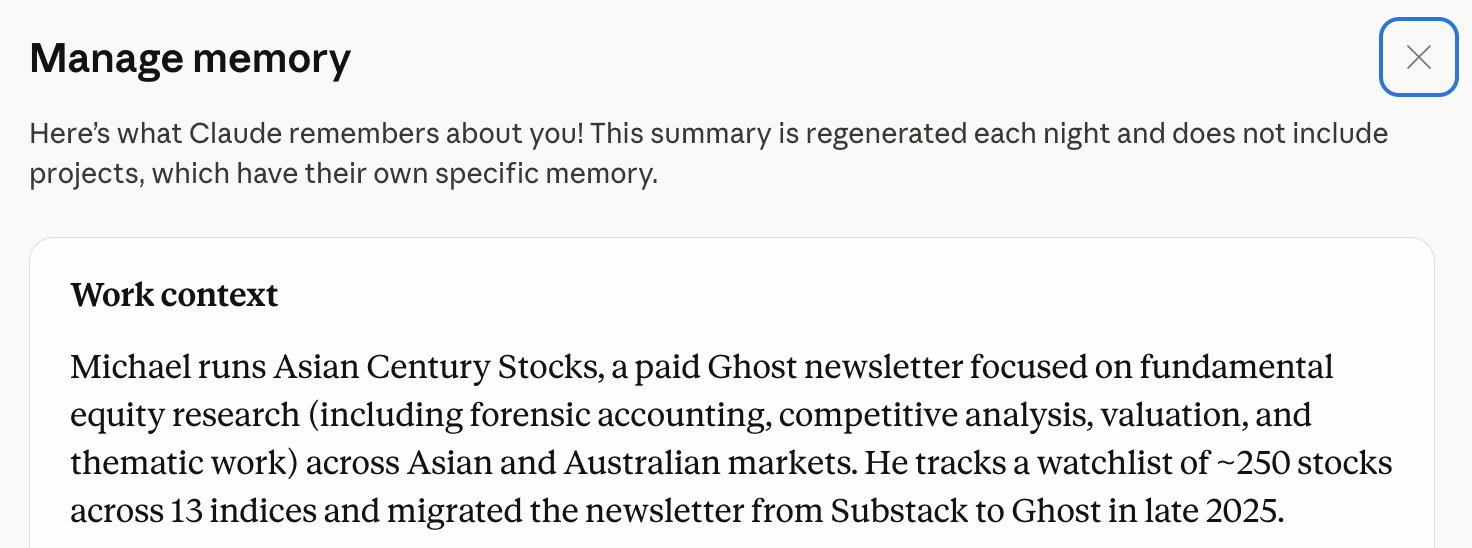
If you want to add anything to the memory, click the pen button at the lower-left corner of the screen and add things you'll want Claude to keep in mind.
You can also import the memory from other generative AI tools. Just click "Settings" and then "Capabilities", and follow the instructions after clicking "Start Import".

Claude will now have much greater context on who you are and what you're looking for.
Managing the main prompt window
While visiting the website, you can reach Claude's main prompt window by clicking "Ctrl/⌘ + Shift + O". You'll then be presented with the following window:
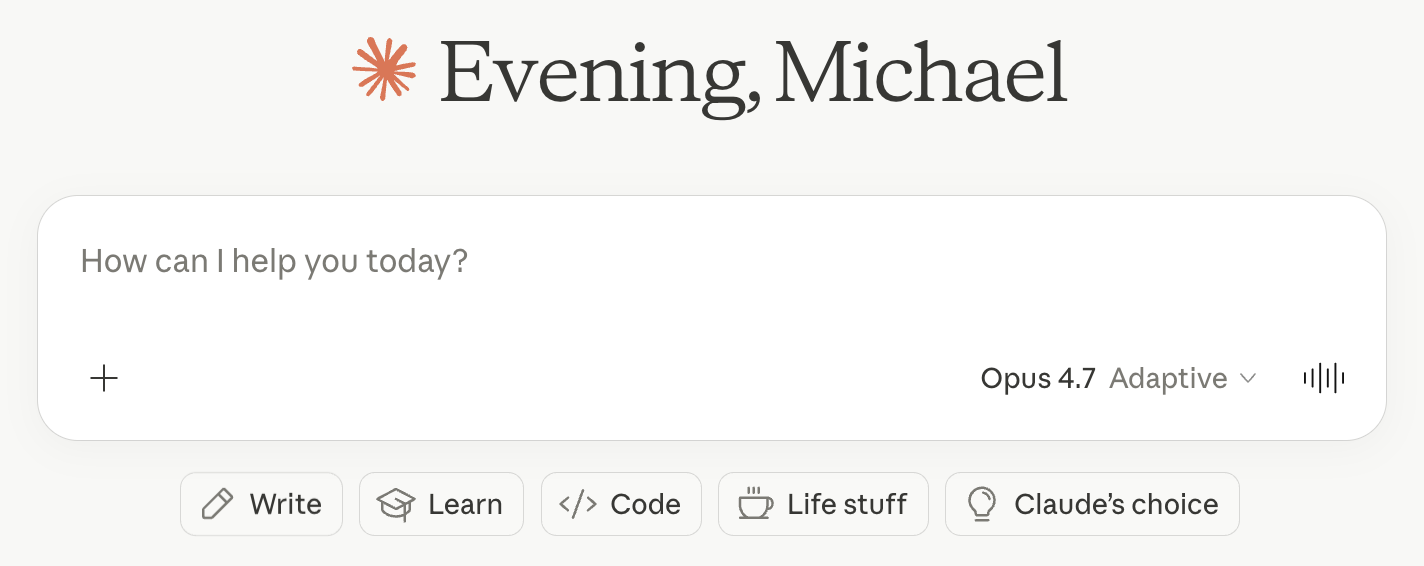
To add files, click the "+" sign, type "/" or drag and drop a file from your computer. If it's a picture, you can also just paste it by typing "Ctrl/⌘ + V".
Use Sonnet 4.6 for routine questions and tasks and Opus 4.7 for complex, multi-step analysis (if you're on the Pro plan).
If you click the sound button in the lower-right corner of the screen, you'll get to Claude's voice mode, where you can talk to the AI model using your computer's microphone. I've found Claude's live mode better than Gemini's but worse than ChatGPT's. See what you think.
Save AI prompts in Claude Projects
In the past three years, I've been saving my AI prompts in Apple's Notes app. This has forced me to copy the prompt text each time and then manually paste it into the prompt window.
This is obviously a poor use of time. These days, I've instead automated the process by switching to Claude's Projects feature. You can think of it like a workspace for particular tasks.
The way I use Claude Projects is to save generative AI prompts, such as the following ones:
Company overview
Explain the company’s business model in simple terms. What are its key products and services? Who are its main customers, suppliers, and competitors? What are the contracts and key payment terms?
Bull vs bear
“Act as an institutional-grade equity analyst. Perform a deep-dive, adversarial analysis of the company. Start with the bull case (competitive advantages, moat sustainability, growth levers including secular tailwinds or potential earnings surprises, capital allocation). Then the bear case (2-3 risks that could permanently impair the business, potential margin compression or revenue deceleration, high expectations). Perform a pre-mortem. Consider whether current valuation multiples are too high. Finally, generate a contrarian view of what the market is currently refusing to see."
Competitive advantages
I want to understand the strength of the company's products and business. How do the products compare with competitors' in terms of perceived value, branding, marketing, etc.? What competitive advantages does the company have that will protect it from future competition, so-called economic moats? And what is the company's bargaining power over other stakeholders?
Supply chain
Explain the supply chain that the company operates in and where the company sits within it. I want the output to be a map from upstream inputs all the way to the end customer, with all stakeholders accounted for. Make sure to capture the names of all the companies interacting with the company.
Segments
Give me a breakdown of revenue, EBITDA, and earnings by segment. Describe how each of these numbers has changed over time and why. Discuss both product segments and geographical segments.
Earnings result
Analyze the company's latest earnings result. Revenue & profit vs. expectations. Did the company beat or miss consensus? By how much? Key segment drivers. Which business lines drove the result? Any notable acceleration or deceleration? Margin trends. What happened to gross/operating margins and why? Guidance & outlook. What did management guide for next quarter/full year? Any change in tone? Balance sheet flags. Anything notable in cash flow, inventory, receivables, or debt? Market reaction. How did the stock react and what does that signal about what was priced in? Flag anything that looks unusual relative to the company's recent history.
Earnings calls
Create a summary of the company's recent earnings calls and tell me what management is focused on. Perform sentiment analysis and describe how sentiment has shifted over time.
Management
For the company, give me a brief assessment of the CEO and key executives: 1) Track record: What have they actually built, turned around, or delivered in prior roles? Quantify where possible. 2) Tenure & insider ownership — How long in the role, and how much skin in the game? 3) Capital allocation history — Do they reinvest wisely, acquire disciplined, or destroy value? ROE/ROIC trend under their watch. 4) Red flags — Related-party transactions, excessive comp, frequent strategy pivots, or promotional behavior. 5) Founder vs. professional manager — Which archetype, and what does that imply for this stage of the business?
Stock price analysis
Help me understand historical catalysts behind the company's stock price. What news or events moved the stock up or down more than 5% in the last 5 years?
Comps
Generate a comparables table with the company and its key global peers within the industry. Include the Bloomberg ticker, USD market cap, and the following valuation multiples: EV/Sales, EV/EBIT, P/E, and dividend yield. Also include the 5-year average return on equity for each peer.
Forward projection
Estimate the company's earnings per share in the following three years from 2025 to 2027. Consider industry growth, market share gains, price increases, cost pressures, operating leverage, financing costs and share count dilution in your final earnings per share estimates.
Red flags
"You are a forensic equity analyst. Identify red flags and accounting risks in the financial statements of the company, including revenue recognition, segment reporting, leases, related parties, contingencies, stock-based comp, goodwill/intangibles across the income statement, balance sheet and cash flow statement."
Management questions
Create 15 precise questions for the CEO about the company's long-term strategy, competitive advantages, capital allocation and risks that they see on the horizon. Order by information value.
Devil's advocate
"You are a skeptical short-seller analyzing the company. Your job is to dismantle the bull case. What could structurally break the way this company makes money? Where is the revenue concentrated, and what happens if that concentration shifts? Why might the moat be weaker than bulls think? Who is the most dangerous competitor that bulls are underestimating, and why?What are the worst ways management has allocated capital? Any related-party transactions, aggressive accounting, or misaligned incentives? What assumptions need to hold for the current price to be justified? What happens to the valuation if growth disappoints by 20-30%? What is the single scenario that would permanently impair this business, and how plausible is it?"
Create a separate Project for each of these prompts. Then click "Set project instructions" for each of them. Tell it to use each of the above prompts.
For example, for the "Company overview" prompt above, I input the following and then click "Save instructions".
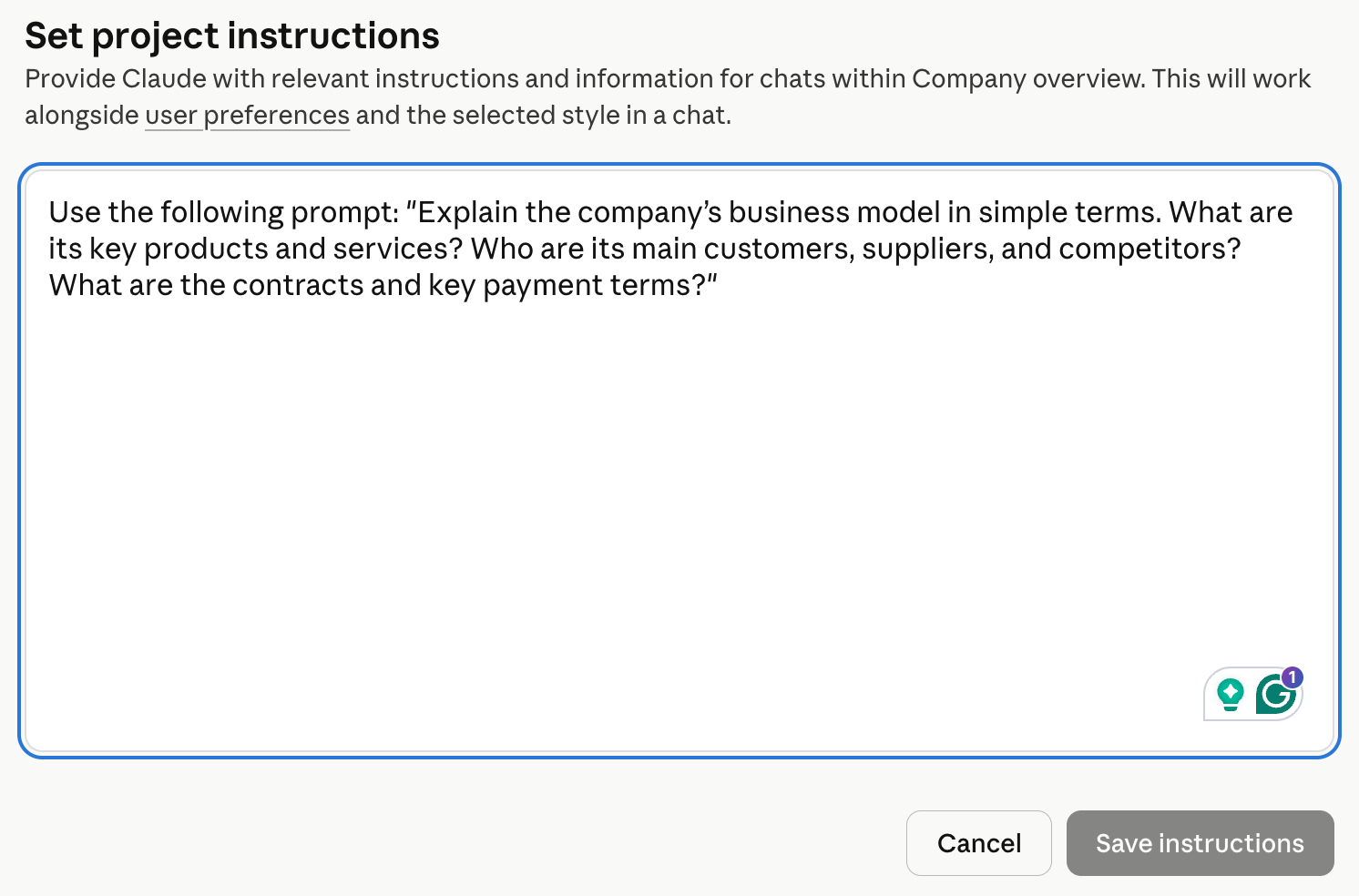
What this does is allow us to analyze a stock without having to enter the entire prompt. Instead, I just click the Project name "Company overview", enter the ticker and then press Enter:
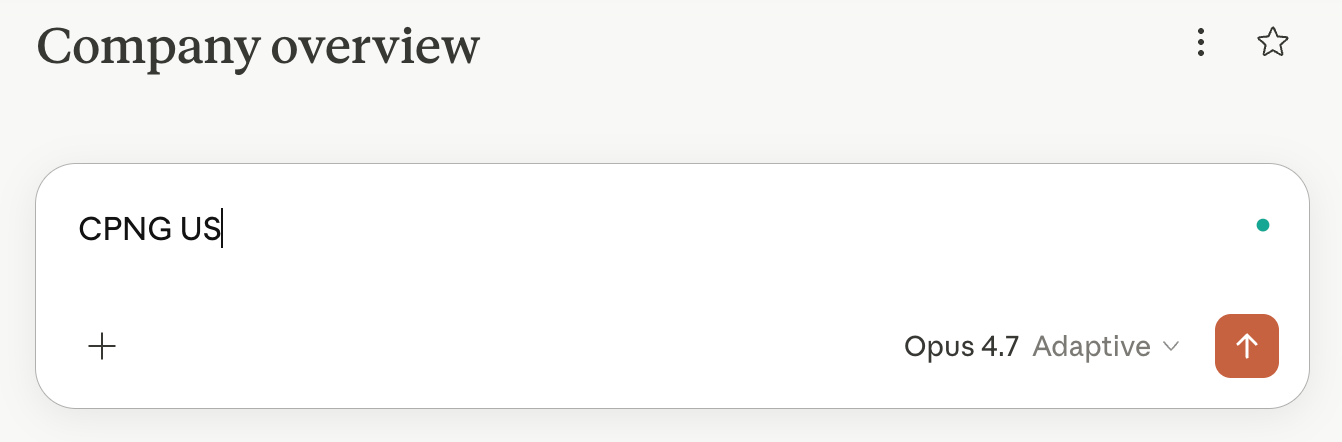
I then get an excellent reply with minimal effort:
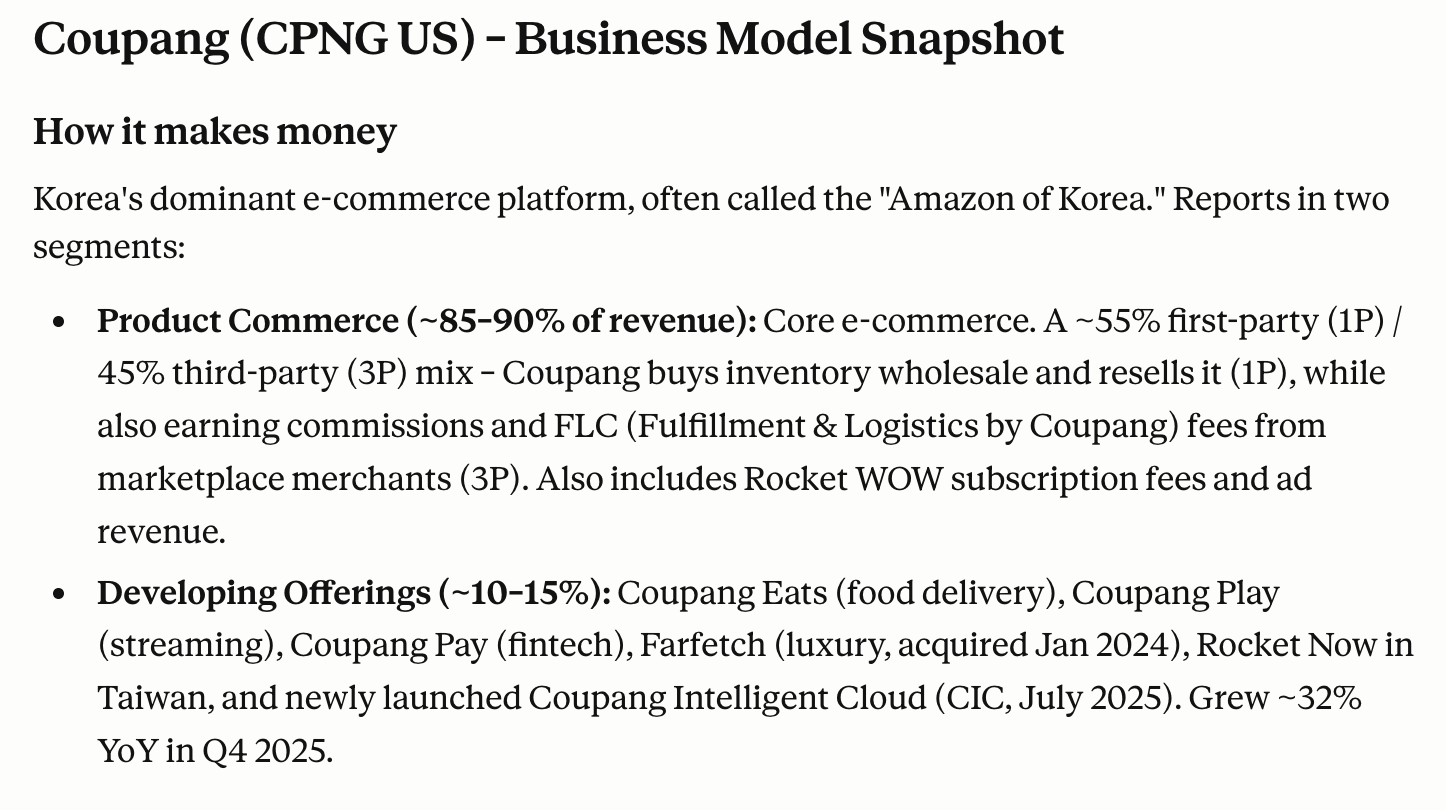
If you don't like the reply from any of the prompts, just go to its Project and adjust it accordingly.
To streamline the process even more, click the Star sign for each of these Projects. They'll now appear in the sidebar on the left side of your window.
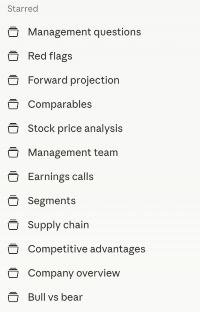
Any time you want to perform analysis, just click each Project, then type in the ticker.
Some investors use Claude Projects the same way you might use NotebookLM: to save files for particular stocks, including annual reports, earnings call transcripts, etc. But I prefer NotebookLM when it comes to analyzing a large number of documents. NotebookLM has a richer feature set. For example, it can generate podcasts, connect to YouTube and Gmail, and easily handle hundreds of sources.
Claude for Word/Excel/PowerPoint
Now let's install Claude for Word/Excel/PowerPoint.
Go to Microsoft's Marketplace, click "Get it now" for the app plug-ins you want, then follow the installation and login process.
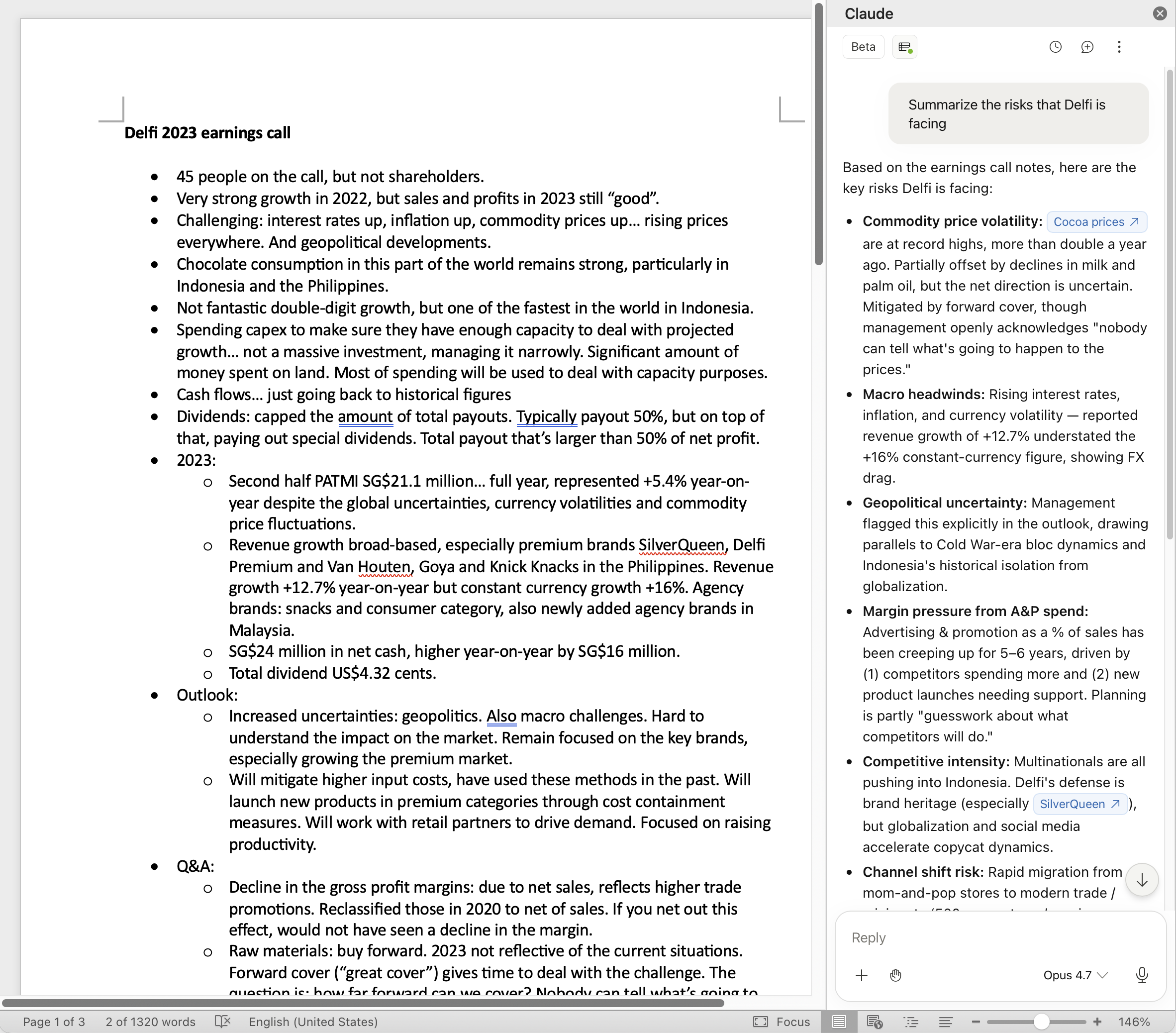
Next time you open any of these apps, you can ask Claude to analyze or modify the file directly from the associated chat window. For example, you can open the Word file with notes from a previous conference call, and ask for the greatest risks mentioned by management in the call:
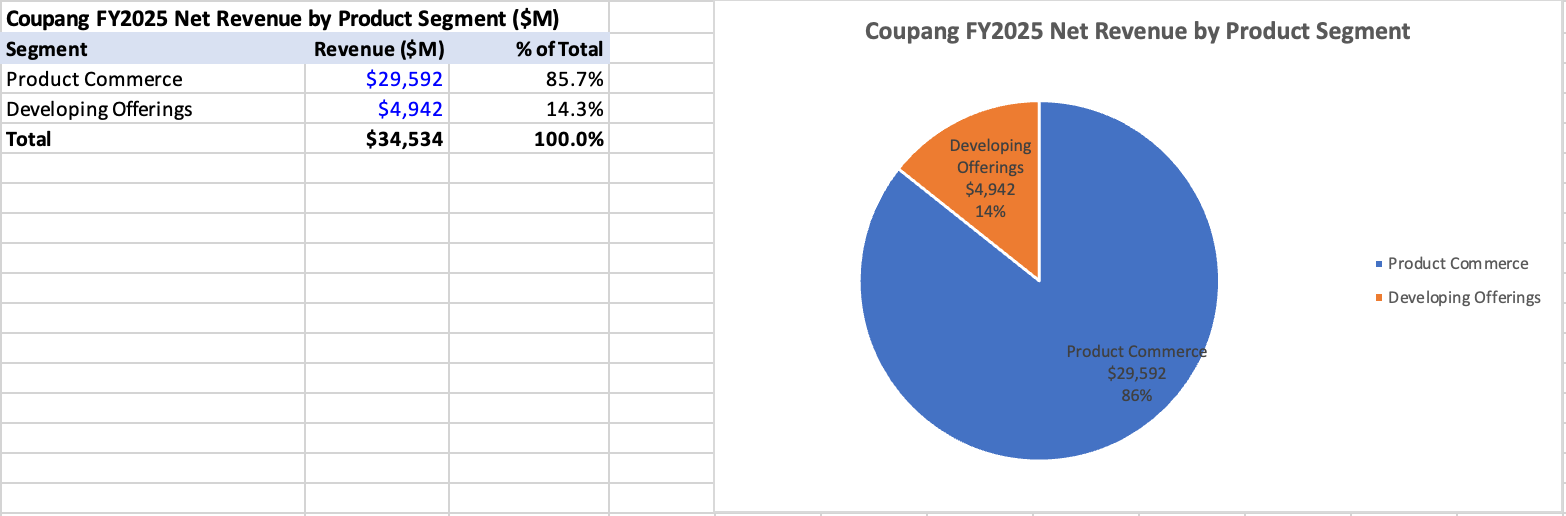
Another example from my personal workflow is to open Microsoft Excel, drag and drop Coupang's 4Q2025 earnings presentation into the Claude sidebar and perform a segment analysis:
"Find 2025 revenues by product segment and geographical segment and summarize them in pie charts"
You're then presented with the following output:
Other use cases include checking an Excel sheet for formula mistakes, summarizing long documents, and checking for factual or spelling mistakes in my Asian Century Stocks PowerPoint presentations.
Claude Cowork for automating tasks
Next, we'll download Claude's desktop app. It's only available for MacOS right now, but it will probably be available on Windows soon.

Inside the app, there are three modes to choose from
- Claude Chat
- Claude Code
- Claude Cowork
In short, Chat is for thinking through problems. Code is for building software. And Cowork for running tasks on your computer.
Once you've installed the Claude desktop app and have it running in the background, you can access it anytime by double-clicking the Options key on your Mac. You'll then be presented with the following pop-up window:

In my view, this is the fastest way to get an answer to a question, much faster than opening your web browser and searching on Google.
I also have the Caps Lock button connected to Claude's voice mode. If you click Caps Lock at any time, the voice mode will be activated, and you can simply speak into your microphone to get an answer:

But let's dig into Claude Cowork specifically. You can find the Cowork button at the top-left corner of the Claude desktop app:
Every time you deal with Cowork, you'll want to give it access to a folder on your computer. Just click the "Work in a project" button and then click "Choose a different folder"
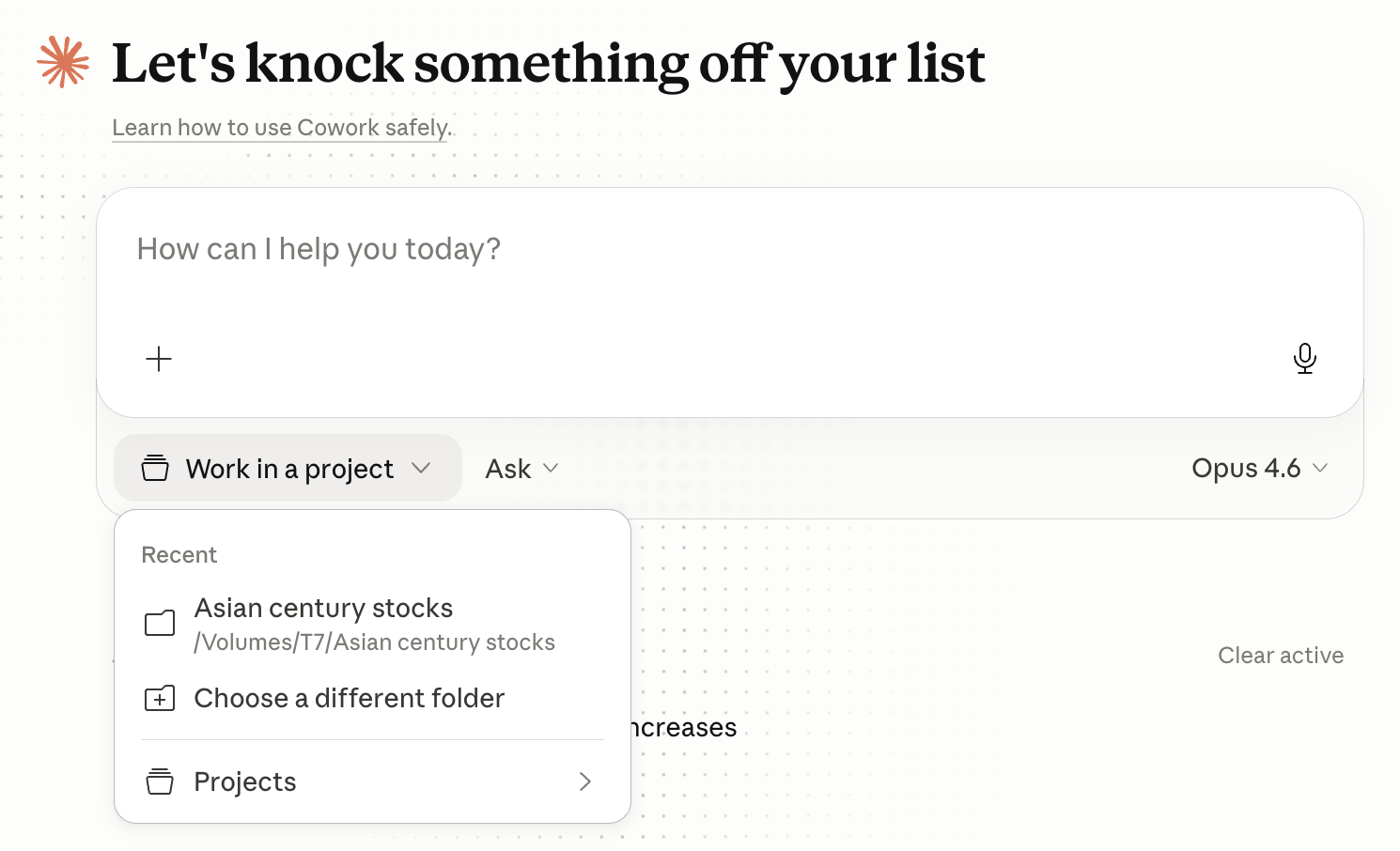
With that file access, Claude Cowork can now view, create and modify files. You should allow the app to modify files in the folder, but don't grant it access to your entire hard drive.
Here's an example of how I might use Cowork. Yesterday, I downloaded the latest eight earnings call transcripts for the Korean e-commerce company Coupang into a folder, and then asked it to analyze the recent trend in its earnings call sentiment. It then gives me the following output, which is saved in a separate Microsoft Word document called "Coupang earnings sentiment analysis.docx":
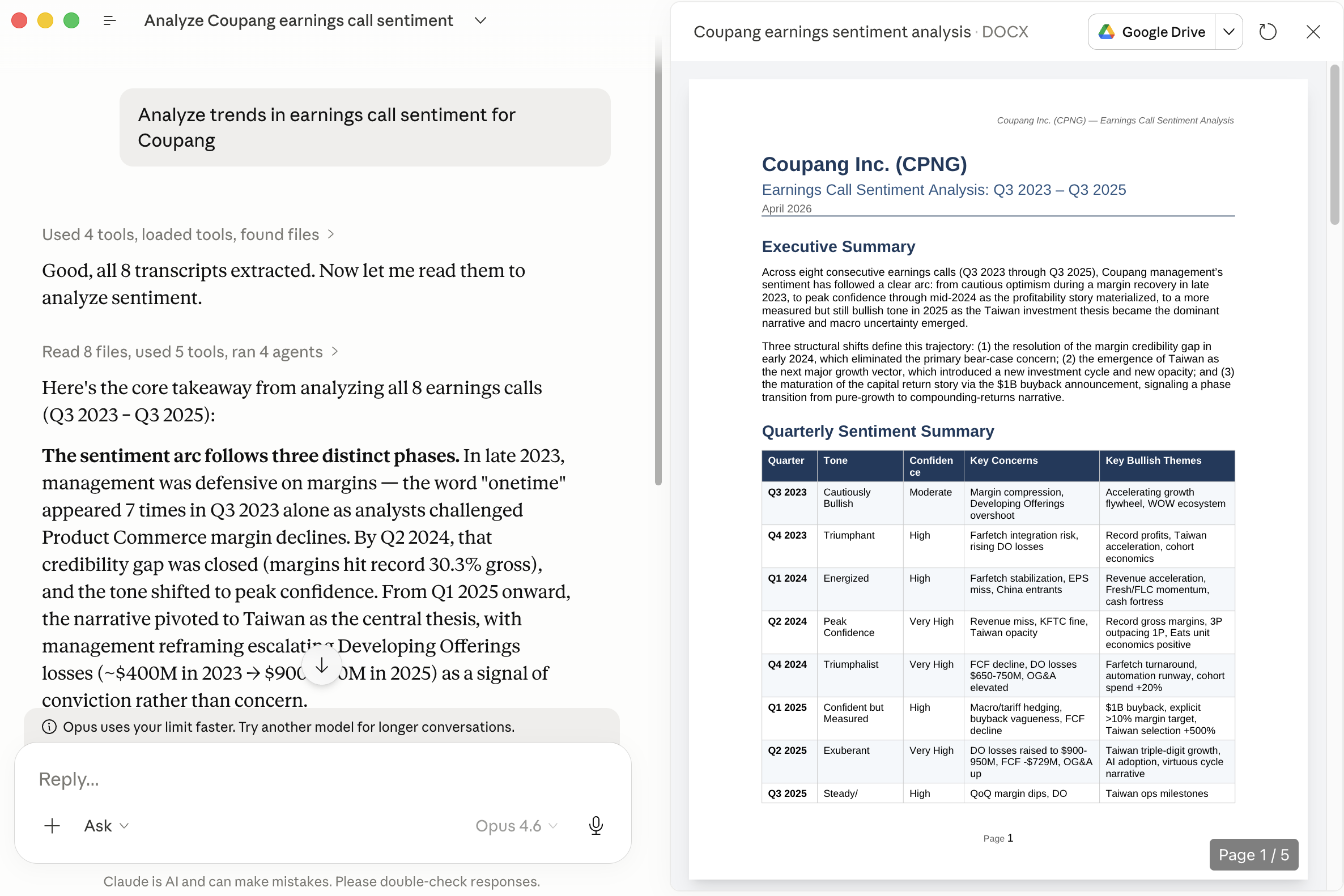
If you click "Instructions", you can tell Cowork exactly how you'll want the output for any particular task to look. These instructions will be saved in a separate file called "Claude.md" in your chosen folder.
Other than earnings call sentiment analysis, I might use Cowork for finding obscure data, translation tasks, summarizing documents, conducting forensic analysis on financial statements, etc.
But, in my view, where Claude Cowork really shines is where you need to create or modify existing files. In the Coupang folder mentioned earlier, I have an Excel file called Coupang.xlsx as well as its recent annual reports. Knowing this, I can ask Cowork to take Coupang's income statement and insert it into a new Excel sheet:
"Create a new sheet in Coupang.xlsx where you paste the last 3 years of Coupang's income statement from its annual reports into a nicely formatted table"
This is what I'm then presented with, inside my Coupang.xlsx Excel file:
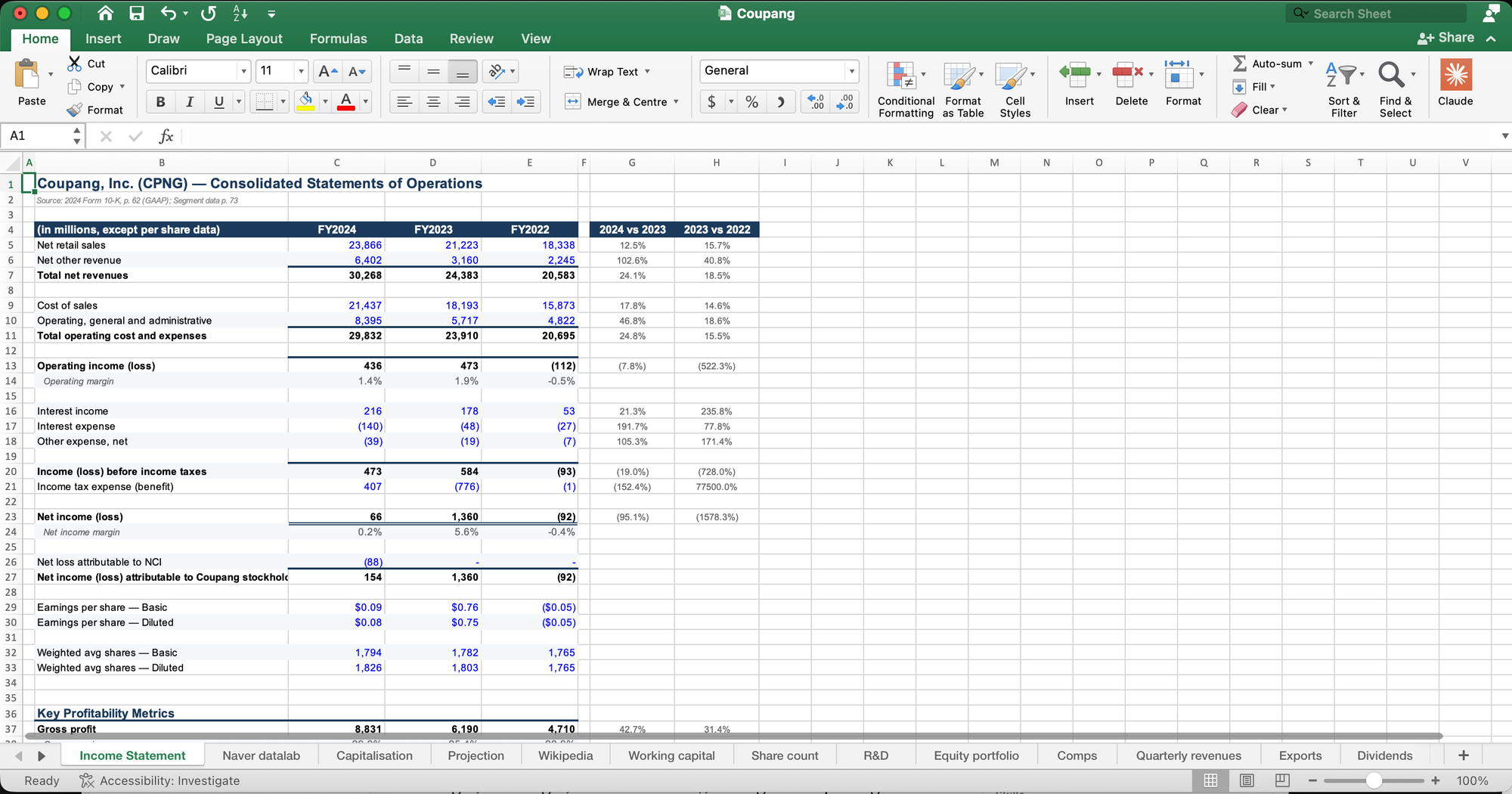
Pretty impressive. Just be aware that generative AI tools sometimes make mistakes. So always double-check the output.
You can also connect Claude Cowork with other apps. To do so, click "Customize" in the sidebar on the left-hand side of the app and then click "Connect your apps". I suggest adding Google Calendar, Google Drive (which includes Google Sheets), Slack and Notion.
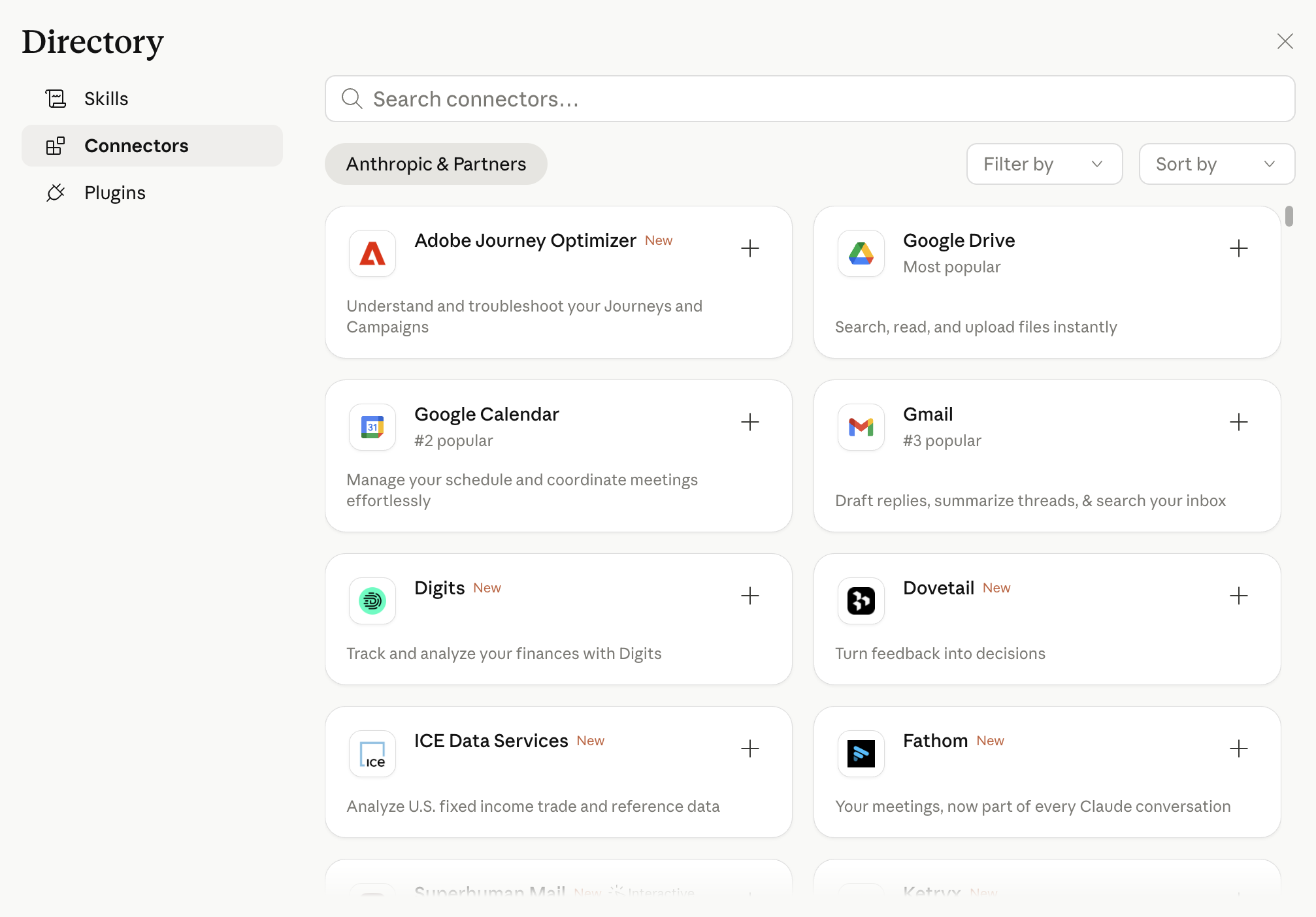
You'll also want to search for "Control Chrome" and install that connector. On top of installing the Claude extension inside Google Chrome. By doing this, you'll allow Claude Cowork to browse the web for you to download documents, scrape data off websites, etc.
With connections, you can automate processes using each of these apps. For example, I have a 400-line watchlist in Google Sheets that I track weekly. To automate that process, I enter the following prompt:
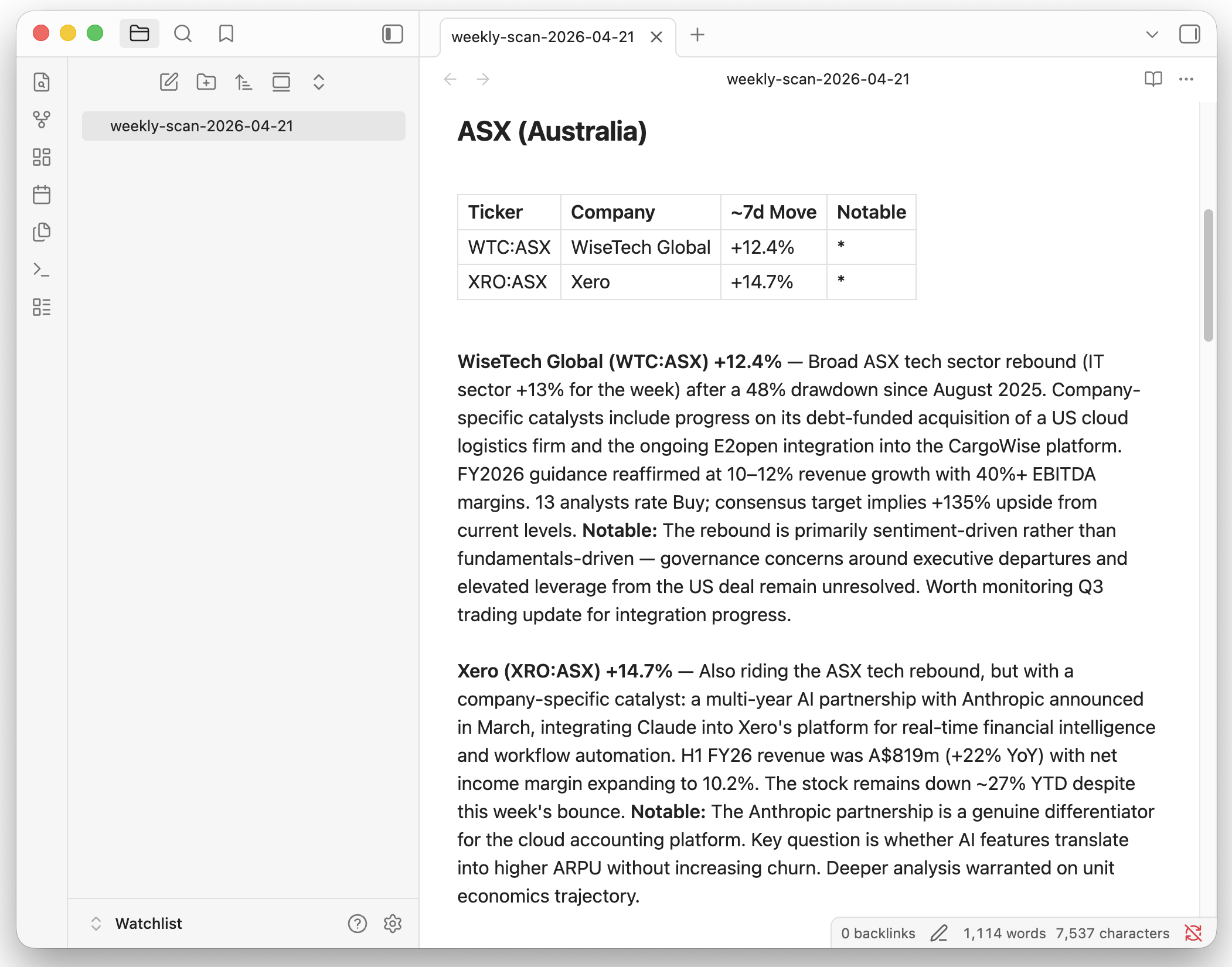
"Read my watchlist from the Google Sheet "Asian Century Stocks Watchlist". Find the stocks that have moved more than 10% in the last 7 days. For those stocks, scan the Internet for earnings results, guidance changes, regulatory actions, analyst upgrades/downgrades, and material corporate events. Summarize the findings in a markdown report grouped by market (ASX, HKEX, SET, PSE, etc.), with a one-line summary per stock and a 'Notable' flag for anything that warrants deeper analysis. Skip stocks with no material news. Save the report as weekly-scan-[date].md to /Documents/Watchlist/."
Claude Cowork then saves a file on my computer called "weekly-scan-2026-04-21.md", containing the following information:
Since I will want to run this task periodically, I save the routine in what Claude calls a "skill", so that Claude knows what to do each time:
"Create a skill from this workflow called /weekly-watchlist-scan that captures the process, format, and output location we just refined."
Finally, I schedule the task to be repeated on each Monday morning at 9:00am by typing "/schedule the weekly watchlist scan every Monday morning at 9:00am SGT".
As long as the computer is turned on and Claude Cowork is open, it'll perform the task and save each week's output as another "weekly-scan" file in my Watchlist folder.
Claude Dispatch
Next, we'll learn how to control your computer using your phone.
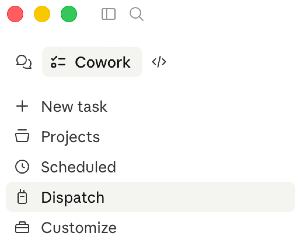
Open the Claude Desktop app, click Cowork and then "Dispatch" in the sidebar to your left:
With Dispatch, you'll be able to control your computer using the Claude app on your phone, as well as all the apps that are connected to it:
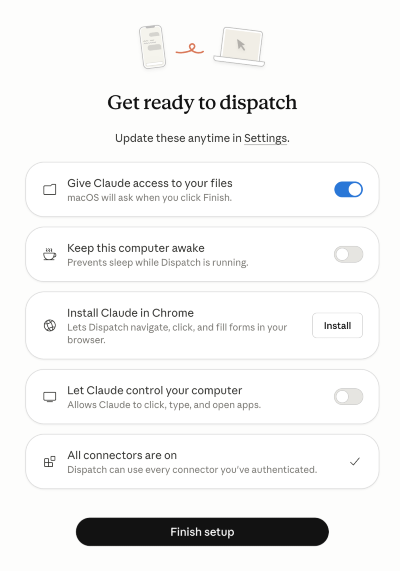
Every time you want to control your computer, just open the Claude app on your phone and click "Dispatch" to open the window where you give instructions to your computer.
When I'm on the run, I might want to retrieve a document from my computer. So I asked Dispatch to retrieve the Coupang earnings sentiment analysis document that I just created:
"Retrieve the Coupang Earnings Sentiment Analysis saved in my Coupang folder"
I'm then presented with the following output within Dispatch:
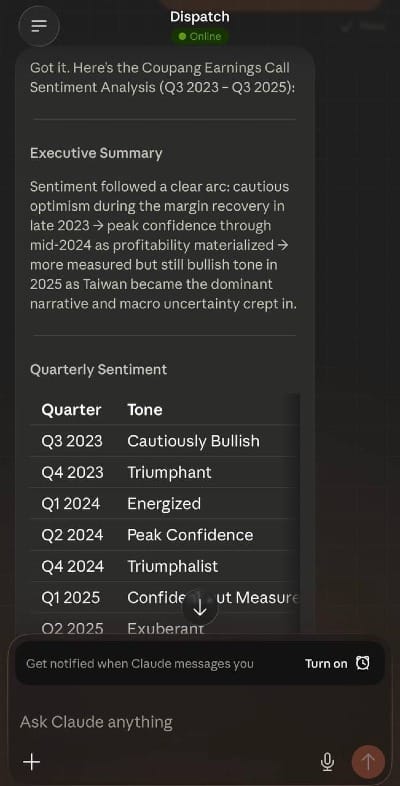
So it's very useful, as you can see. With Dispatch, you can work remotely from just your phone using natural language.
Conclusion
Claude isn't perfect. It's a little slow at times, and if you're a heavy user, you'll quickly exceed your usage quota. Many of us will feel compelled to upgrade to the US$100/month plan.
But I think the Google Chrome plug-in, Microsoft Office plug-ins, Cowork, Dispatch and the other Claude tools will fundamentally change the way we operate. It's time for us to learn these tools to automate some of our daily work.
In practice, organizing my most-used prompts through Claude Projects might be the one trick that has saved me the most time. Today, when I'm interested in a company, I just click each Project, enter the ticker and voila — I get exactly the output I want.
I've also found it helpful to throw a document into Claude for Excel and have it present the data in a nicely formatted table in a spreadsheet.
I still haven't used Cowork much, as I prefer working with files in the cloud. But I can see why others find it helpful.
Now that I've gone through my usage habits, I'm interested in hearing how you're finding Claude. What tricks are you using to automate your research process?